
Transparent Skin Showcase Steam Profile Guide
Want your Steam profile to stand out? Make it transparent! Show off your games, achievements, and style with a sleek, see-through look that turns heads. This guide walks you step-by-step to a next-level Steam profile you'll actually want to show off.

Take Screenshots of Your Skins
Get screenshots of your skins either in game or using a screenshot bot like the one in Our Discord Server.

Cut out your Skins
There are three main methods for extracting an image of your skin. Two of these involve using image processing programs such as Photoshop or its free alternative, GIMP. The third option, which doesn't require any software installation, is to use online tools like remove.bg.
While the online tool is the easiest method, it tends to produce messier results. You can choose between a faster or cleaner method using traditional software, but we recommend the cleaner approach for a more professional-looking outcome.

Fast Method - Magic Wand Tool:
The quickest way involves using the magic wand tool to select the background and then deleting it. However, this method can be messy and less precise, occasionally cutting into the skin itself and resulting in a less polished outcome.
Clean Method - Polygonal Lasso Tool:
For a cleaner and more accurate outcome, use the 'Polygonal Lasso' tool to meticulously click around the entire outline of the skin. While this approach may take more time, it ensures a cleaner and more precise result.
Add Shadows
The Easy Way
Once you have removed the backgrounds from each skin:
- Select all the skin layers, right click and 'Merge Layers'
- Double click the merged layer to bring up the 'Layer Style' options
- Enable 'Drop Shadow' and play around with the settings

For the 'Drop Shadow' settings we recommend:
- Opacity 70%
- Angle 128 degrees
- Distance 25px
- Spread 5%
- Size 25px
The Realisitic Way
Once you have removed the backgrounds from each skin:
- Select all the skin layers, right click and 'Merge Layers'
- Duplicate the merged layer so that you have two copies of it
- Holding ctrl, left click the image preview to select the contents of the layer
- Use the fill tool to make the layer solid black
- Press ctrl + D to deselect the selection
- Go to Filter > Blur > Motion Blur. Angle of -50 degrees, distance of around 70 pixels
- Move the shadow layer which you just created under the original layer which you duplicated it from so that the shadows appear underneith the original image
At the top of the page, go to Filter > Blur > Motion Blur. We recommend an angle of -50 degrees and a distance of around 70 pixels.

Move the shadow layer which you just created under the original layer which you duplicated it from so that the shadows appear underneith the original image. Move the shadows down and to the right as needed. It can be useful to have a white background on your canvas to make the shadow layer more visible and easy to work with.
Add Extra Details
You can take your design up a level by adding extra details such as water dropplets, smoke in the background or other elements of your choice. This isn't neccecacry but can make your design even more eyecatching if done correctly.
Save as .png
Once you are happy with your design, go to File > Export > Quick Export as PNG to save your file. This step is important as saving specifically as a .PNG will allow you to have a transparent background on your image.

Modify the Image Data
Upload Transparent Steam Artwork
Open this link with a web browser (Chrome, Firefox, etc.): https://steamcommunity.com/sharedfiles/edititem/767/3/ Give your artwork a title and select your transparent image as the artwork file. Press F12 to open the developer console. Click the "Console" tab and paste the following code: $J('#image_width').val(1000),$J('#image_height').val(1); Press ENTER to apply the code. Tick the "I certify that I created this artwork" checkbox. Click the "Save and Continue" button to upload your artwork.
Display the Artwork on your Profile
Once you have uploaded your image, go to Edit Profile > Featured Showcases and add a 'Featured Artwork Showcase' to display the image you uploaded
Make it Stand Out
Apply a transparent profile theme and an animated background to make the transparency more obvious.
1. Go to Store > Points Shop > Game Profiles 2. Buy the 'Dying Light 2 Stay Human Profile' for 10,000 Steam points 3. Click 'Apply to my profile' 4. Set a custom background in 'Edit Profile'
Show it off!

Your trusted source for all things CS2 skins, delivering the latest tips and insights to enhance everything related to collecting CS2 skins, mastering inventory management, and creating sticker crafts. Explore the world of Counter-Strike 2 skins and elevate your collection with expert tips and insights.



Best Agent and Patch Combos
With Agent skins gaining more prominence in CS2, we figured it's time to compile a list of the best agent and patch combos.
How to organize your CS inventory
Delve into the specifics of how to organize your Counter-Strike inventory and why it's a practice every player should adopt.
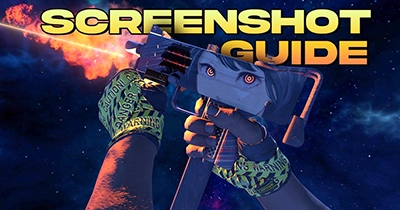
CS2 Skin Screenshot Guide
Learn advanced skin screenshot techniques using console commands to enhance your Steam profile or elevate your cash trading on platforms like Twitter.